
Download X Backup – Secure, Fast & Automated Backup Tool for Windows & macOS
Overview
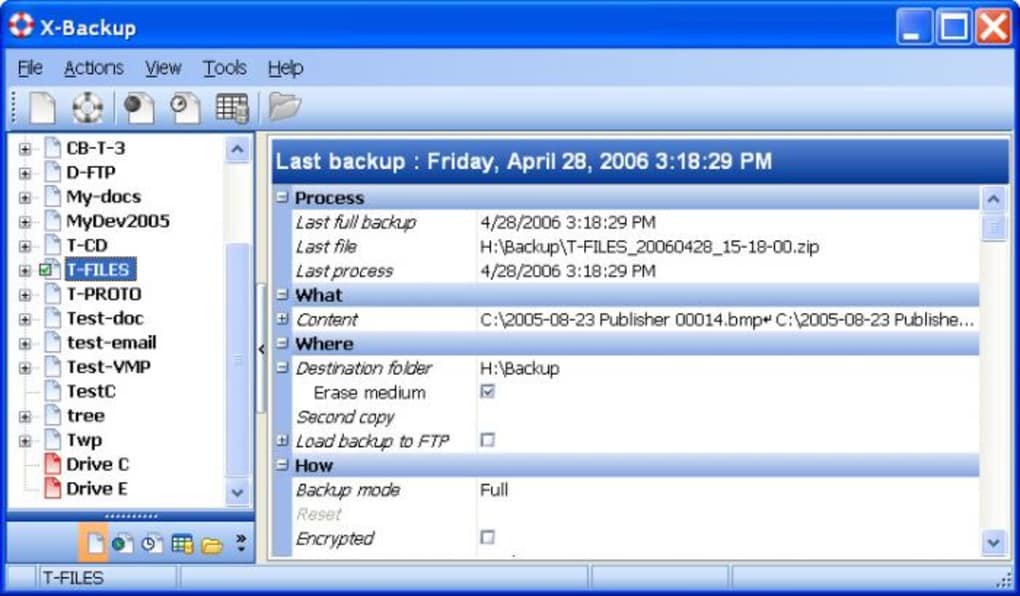
When a hard‑drive failure or accidental deletion strikes, the last thing you want to scramble for is a reliable recovery solution. X Backup steps into that role as a powerful, versatile backup utility designed to protect every file on your PC or Mac. Built on a familiar Microsoft Office‑style interface, X Backup may not win design awards, but its clear layout makes the backup process intuitive for both beginners and seasoned IT professionals.
The core promise of X Backup is peace of mind: it automatically compresses selected files into ZIP archives or creates full disk‑partition images for massive data sets, ensuring that you always have a recent copy ready for restoration. Regular updates have tightened security with 256‑bit AES encryption and boosted performance, meaning your backups run faster and consume less system resources. One of the standout capabilities is the built‑in timeline scheduler, which lets you pick exact windows for backup jobs to run, keeping your workflow uninterrupted.
Paired with real‑time synchronization, the software detects any changes on your machine and instantly backs up new or modified files, eliminating the risk of data loss between scheduled runs. Should disaster strike, the restore function restores files to their original locations with a single click, making recovery as seamless as the backup itself. X Backup is a free‑to‑download solution that packs enterprise‑grade features into a lightweight, user‑friendly package, making it an excellent choice for home users, freelancers, and small businesses alike.
Key Features
- Scheduled Backups: Define precise dates and times for backup jobs, allowing you to run intensive tasks during off‑peak hours.
- Real‑Time Synchronization: Continuous monitoring detects file changes and backs them up instantly, ensuring the latest version is always stored.
- Multiple Backup Types: Choose between lightweight ZIP archives for everyday files or full disk‑partition images for large data sets.
- 256‑Bit AES Encryption: Protect your backups with industry‑standard encryption, preventing unauthorized access.
- One‑Click Restore: Retrieve files to their original locations with a single click, reducing downtime after data loss.
- Cross‑Platform Support: Compatible with Windows 10/11 and macOS Catalina or later, covering the majority of desktop environments.
- Incremental Backup Engine: Only new or changed data is saved after the initial backup, saving storage space and speeding up subsequent runs.
- Detailed Storage Overview: Visual dashboard shows total backup size, remaining space, and recent activity at a glance.
- Automatic Update Checks: The software routinely checks for security patches and performance improvements, keeping your backup routine current.
- User‑Friendly Interface: Office‑style layout reduces the learning curve and provides familiar navigation for Windows users.
These features combine to make X Backup a comprehensive solution for anyone who values data integrity. The scheduler’s flexibility means you can align backup windows with your personal or business calendar, while the real‑time sync ensures that critical documents, photos, and project files are never left vulnerable for long periods. Encryption is handled transparently: you set a password once, and every subsequent backup is automatically secured without extra steps. The incremental engine further optimizes the process, making regular backups quick and storage‑efficient. Whether you’re protecting a single laptop, a networked workstation, or an entire workstation fleet, X Backup scales to meet the demand without sacrificing speed or security.
Installation, Compatibility & Usage
Getting X Backup up and running is straightforward, regardless of whether you’re on a Windows PC or a macOS system. Follow these steps to install and configure the software for optimal performance:
Step‑by‑Step Installation
- Visit the official X Backup download page and click the “Download for Windows” or “Download for macOS” button, depending on your operating system.
- Once the installer file (
.exefor Windows,.dmgfor macOS) finishes downloading, double‑click it to launch the wizard. - Accept the End‑User License Agreement, then choose the default installation folder or specify a custom path.
- Click “Install” and wait for the progress bar to complete. The installer will also prompt you to install any required .NET (Windows) or Apple Framework (macOS) components.
- After installation, launch X Backup from the desktop shortcut or the Applications folder.
System Requirements (itemprop="operatingSystem")
To ensure smooth operation, verify that your machine meets the following minimum specifications:
- Windows: Windows 10 (64‑bit) or later, 2 GB RAM, 500 MB free disk space for the application, and an additional 1 GB for temporary backup processing.
- macOS: macOS Catalina (10.15) or later, 2 GB RAM, 500 MB free disk space for the app, and at least 1 GB of temporary storage.
- Internet connection for activation, update checks, and optional cloud‑sync integration.
First‑Run Configuration
When you open X Backup for the first time, a quick setup wizard guides you through essential settings:
- Select Backup Sources: Choose folders, drives, or individual files you wish to protect.
- Destination Choice: Point the software to a local external drive, network share, or attached USB storage device.
- Encryption Password: Create a strong password for 256‑bit AES encryption. This password cannot be recovered, so store it securely.
- Schedule Definition: Use the timeline interface to set daily, weekly, or monthly backup windows. Avoid peak work hours to minimize interruptions.
- Sync Mode Activation: Enable real‑time synchronization if you need instant protection for frequently edited files.
After completing the wizard, click “Start Backup.” X Backup will perform an initial full backup, then transition to incremental updates based on your schedule or sync settings. Monitoring is available via the dashboard, where you can pause, cancel, or force a manual backup at any time. Should you ever need to restore data, simply navigate to the “Restore” tab, select the desired backup set, and click “Restore to Original Location.” The process is automated and typically completes within minutes, depending on the size of the data set.
Pros, Cons, FAQ & Conclusion
Pros
- Free to download with no hidden subscription fees.
- Robust 256‑bit AES encryption keeps backups secure.
- Flexible scheduling and real‑time sync options.
- Supports both ZIP archives and full disk‑image backups.
- Cross‑platform compatibility for Windows and macOS.
- Incremental backup engine conserves storage space.
- User‑friendly Office‑style interface reduces learning curve.
- Automatic update checks keep the software current.
Cons
- No native cloud storage integration (requires third‑party mounting).
- Interface looks dated compared to modern minimalist designs.
- During scheduled backups, system performance may dip if run on low‑end hardware.
- Lacks advanced reporting for enterprise‑level auditing.
- Encryption password recovery is not possible; users must remember it.
Frequently Asked Questions
Can X Backup back up to cloud services like Google Drive or OneDrive?
X Backup does not include built‑in cloud connectors, but you can map a cloud‑synced folder (e.g., a Google Drive folder) as a local destination, and X Backup will treat it like any other external drive.
How does the 256‑bit AES encryption work?
When you set an encryption password, X Backup encrypts each backup file with a 256‑bit AES key derived from that password. The encrypted files can only be opened by entering the correct password during restoration.
Is it possible to schedule multiple backup jobs simultaneously?
Yes, X Backup allows you to create separate backup profiles, each with its own schedule. However, running multiple intensive jobs at the same time may affect system performance.
What happens if the backup drive fails?
If the destination drive becomes unavailable, X Backup will alert you on the next scheduled run and log the failure. You can then point the software to a new drive and resume backups; previously created backups remain intact on the failed drive if it can be recovered.
Can I restore individual files without restoring the whole backup set?
Absolutely. The restore interface lets you browse the contents of any backup archive, select specific files or folders, and restore them to their original locations or a new directory of your choice.
Conclusion & Call to Action
In a world where data loss can cripple personal projects or business operations, X Backup offers a reliable, secure, and cost‑free solution that doesn’t skimp on essential features. Its combination of scheduled backups, real‑time synchronization, and strong AES encryption makes it a compelling choice for anyone who wants to safeguard their digital assets without juggling multiple tools. While the UI may feel familiar rather than flashy and native cloud integration is absent, the core functionality more than compensates, especially for users who value control and local storage. Ready to protect your files before it’s too late? Download X Backup today, set up your first backup in minutes, and enjoy the peace of mind that comes with knowing your data is safely archived and instantly recoverable.







